
If your Excel model has become slow, fragile, or difficult to update, you are not alone. Many Excel users eventually reach a point where formulas become hard to manage.
The good news: you can improve complex models without leaving Excel.
In this article we compare three approaches:
Traditional Excel formulas
Power Query in Excel
River, an Excel add-in designed for complex models
Signs your Excel is out of control
Many complex Excel models show the same symptoms:
Understanding how an output is calculated takes hours
LOOKUPs (V and X) dominate the workbook
Updating input data requires fixing many formulas
Debugging takes more time than building
Calculation time is noticeable, sometimes minutes to refresh
If this sounds familiar, the issue is that you're pushing Excel beyond its limits in terms of formula complexity and computing capabilities.
Why complex Excel models become hard to maintain
Excel works extremely well for calculations and small datasets. Problems appear when models grow large.
This is due to a number of design choices:
Excel tables have a fixed size but merging tables is dynamic.
Formulas is not an intuitive language for humans
Excel's cell-by-cell calculations makes refresh time increase quadratically.
Modern features like dynamic arrays help, but they also put pressure on workbook design and require more advanced formula skills.
Three ways to build the same model
For the comparison we consider a typical model where we:
Import raw data
Clean data
Merge tables
Transform data and calculate summary metrics
Visualize outputs
Refresh inputs to produce new outputs
Approach 1: Standard Excel formulas
Typical structure:
- Input data sheets
- Calculation sheets massively using formulas and lookups
- Output sheets with charts and PivotTables
Example of a typical merge operation:
=INDEX('EU emissions (input data)'!$A$81:$M$86,MATCH('Main dashboard'!$C$31,'EU emissions (input data)'!$A$81:$A$86,0),MATCH('Main Calculations 21-30'!J$95,'EU emissions (input data)'!$A$81:$M$81,0))
Pros:
- Familiar and flexible
- No additional tools
- Cell-level control
Cons:
- Merging tables requires complex lookup formulas
- Easy to break references
- Hard to audit
- Slow for large datasets
- Limited to ~1 million rows
This approach works well for small models, but becomes fragile as complexity grows.
Approach 2: Excel with Power Query
Power Query introduces a structured data transformation engine capable of database-style operations. It has been integrated natively since Excel 2016.
Typical structure:
- Input data stored in Excel Tables
- Power Queries define a linear sequence of transformations applied to a table
- Queries can merge to create new tables
- Results loaded back into Excel tables
Example of a merged query in the query editor:
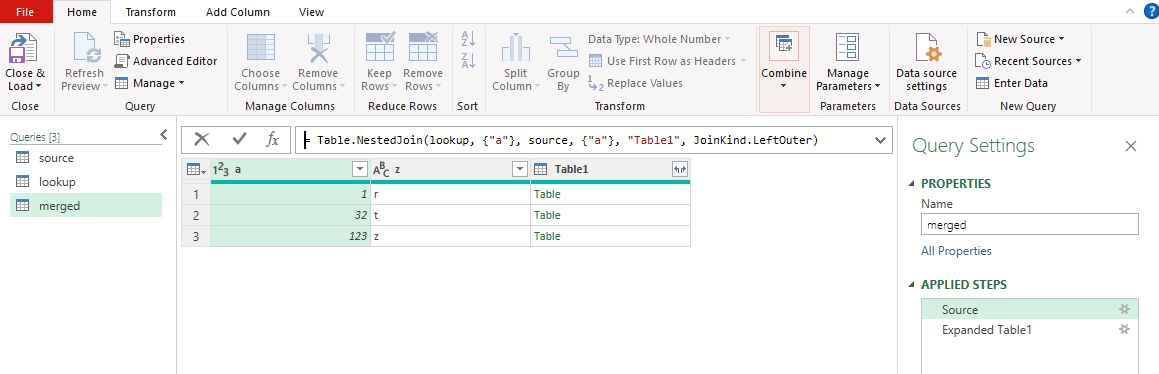
In this example the merge is defined by this formula (Power Query M):
= Table.NestedJoin(lookup_table, {"Column1"}, source_table, {"Column1"}, "Table1", JoinKind.LeftOuter)
Pros:
Structured data transformations
Powerful table joins
Large library of operations
Handles large datasets
Step-by-step transformation history within each query
Cons:
Logic hidden inside the query editor
Difficult to track links across queries when merging tables
Need to learn the Power Query M language
Requires learning database operations such as joins
Refreshes must be triggered manually and user interface tends to be slow
Power Query is excellent for repeatable data transformations, but complex modeling logic is difficult to visualize and to manage. The language makes it more suited for people with a data engineering mindset.
Approach 3: Excel with River
River is an Excel Add-In designed to structure complex models directly inside Excel.
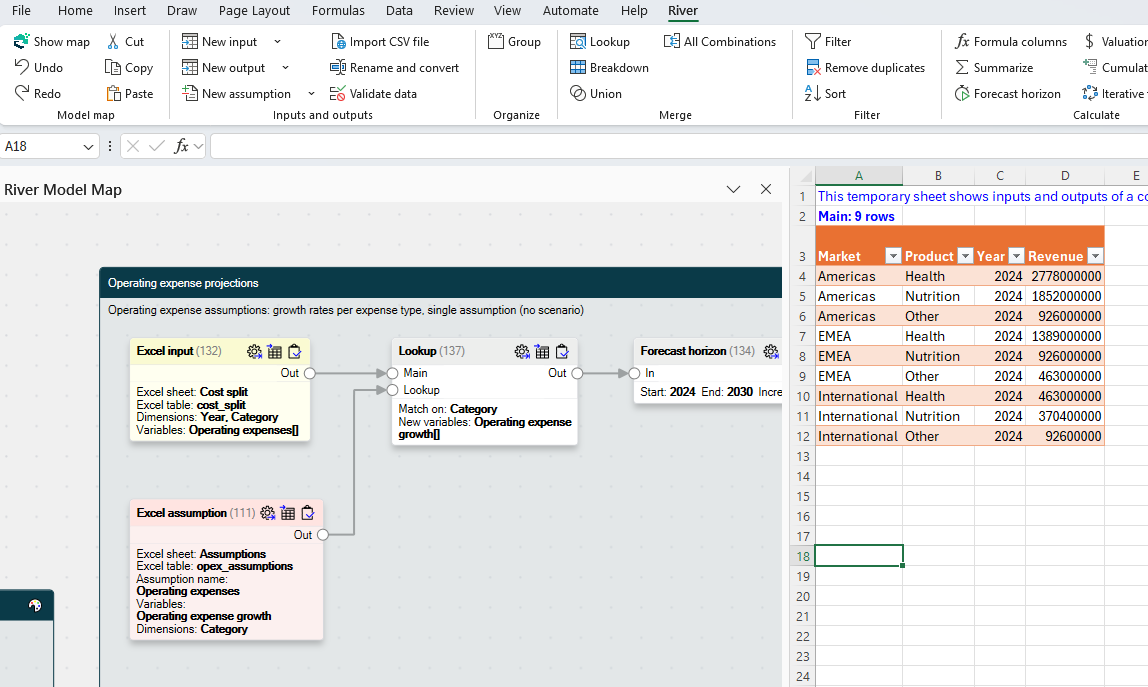
It can also be described as a "visual version of Power Query", allowing easy configuration of a user-friendly library of operations.
Typical structure:
Input and output data stored in Excel Tables (same as Power Query)
Modeling steps defined visually in the Model Map
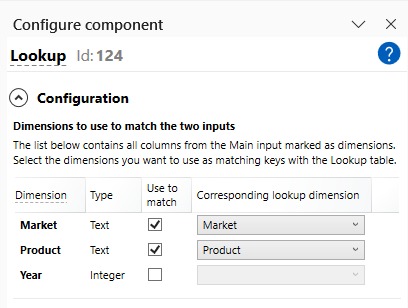
Transformations selected from a library and configured using a visual configuration editor
Visualizations built with normal Excel tools
Example of the visual map showing a table merge, equivalent to an Excel lookup:
Example of configuring a lookup:
Pros:
Visual representation of model logic
- Familiar Excel-style operations (e.g., lookups)
- Automatic refresh
- Fast and responsive
- Built-in data quality checks
- Handles large datasets
Cons:
- Requires to install an Add-In
- Need to learn the user interface (even if it was made intuitive)
- Small fee to pay the developers (as one-off or subscription)
Comparison table
Legend:
- 🟢Strong capability
- 🟡Possible but difficult or with limitations
🔴Not well suited
| Capability | Excel Formulas | Power Query | River |
|---|---|---|---|
| Transparent model logic | 🟡 Trace formulas across sheets | 🔴 Hidden in the query editor | 🟢Visual model map |
Breadth of available operations | 🟡 Many, but require combining formulas | 🟢 Very large library of operations | 🟢All common transformations |
| Merge multiple tables | 🟡 XLOOKUP / INDEX-MATCH | 🟡 Database-style joins | 🟢 Simple merge tools like Lookup |
| Robust to data refreshes | 🔴Often breaks formulas | 🟢 Yes | 🟢 Yes |
| Recalculation | 🟢 Automatic | 🟡 Manual | 🟢 Automatic |
| Large datasets | 🔴 Limited to 1M rows | 🟢 No limit | 🟢 No limit |
| Learning curve | 🟡 Need to learn the pitfalls of formulas | 🔴 Need to learn Power Query M, and concepts such as joins | 🟢 Easy, designed for intuitive use |
| Safety checks | 🔴 None | 🔴 None | 🟢 Built-in data checks |
| Setup | 🟢 Native Excel | 🟢 Native Excel | 🟡 Install an Excel add-in |
| Maintain complex models | 🔴 Difficult | 🟡 Manageable | 🟢 Designed for it |
Which approach should you use?
Use Excel formulas when:
The model is small (a few sheets)
Mostly calculations
Few data sources
Use Power Query when:
Building data ingestion pipelines
Cleaning large datasets
Limited number of data sources
Use River for Excel when:
The model has many transformation steps
Multiple data sources need to be merged
Inputs are updated regularly
You need to audit and maintain the model
Try River for Excel
If your Excel models are becoming slow, complex, or difficult to update, River provides a structured way to build and maintain them.
To see for yourself you can:
- Download the River Add-In with a trial license
- Open our example model to see what it looks like.