When you need to merge tables in Excel, the usual approach is using formulas like XLOOKUP or INDEX-MATCH.
This works for small datasets that never change but is not safe:
- Duplicates in the lookup tables create unpredictable results
- References are easily broken if you shift your data, unless you use table references.
- Updating the input tables require extreme caution as additional rows will not be included by default
If you need a more robust approach we compare this traditional method with two options to solve the problem while staying in Excel:
- Power Query in Excel
- River, an Excel add-in to build intuitive models
How does each option work?
Excel formulas
The traditional approach uses formulas like XLOOKUP to pull values from other tables, for instance for an order table getting information from a customer table:
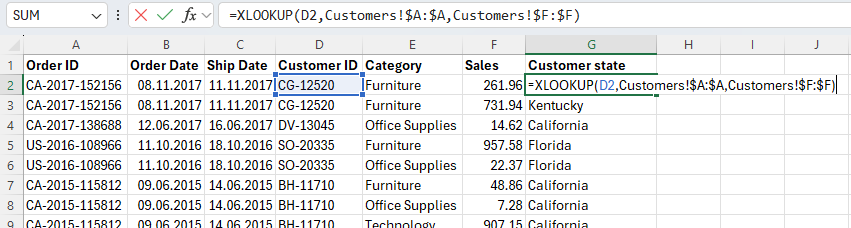
To do this, it needs references to the columns in the lookup table where it can find the matching keys and the data to return.
Power Query
Power Query is a built-in Excel tool for transforming tables using database-style operations.
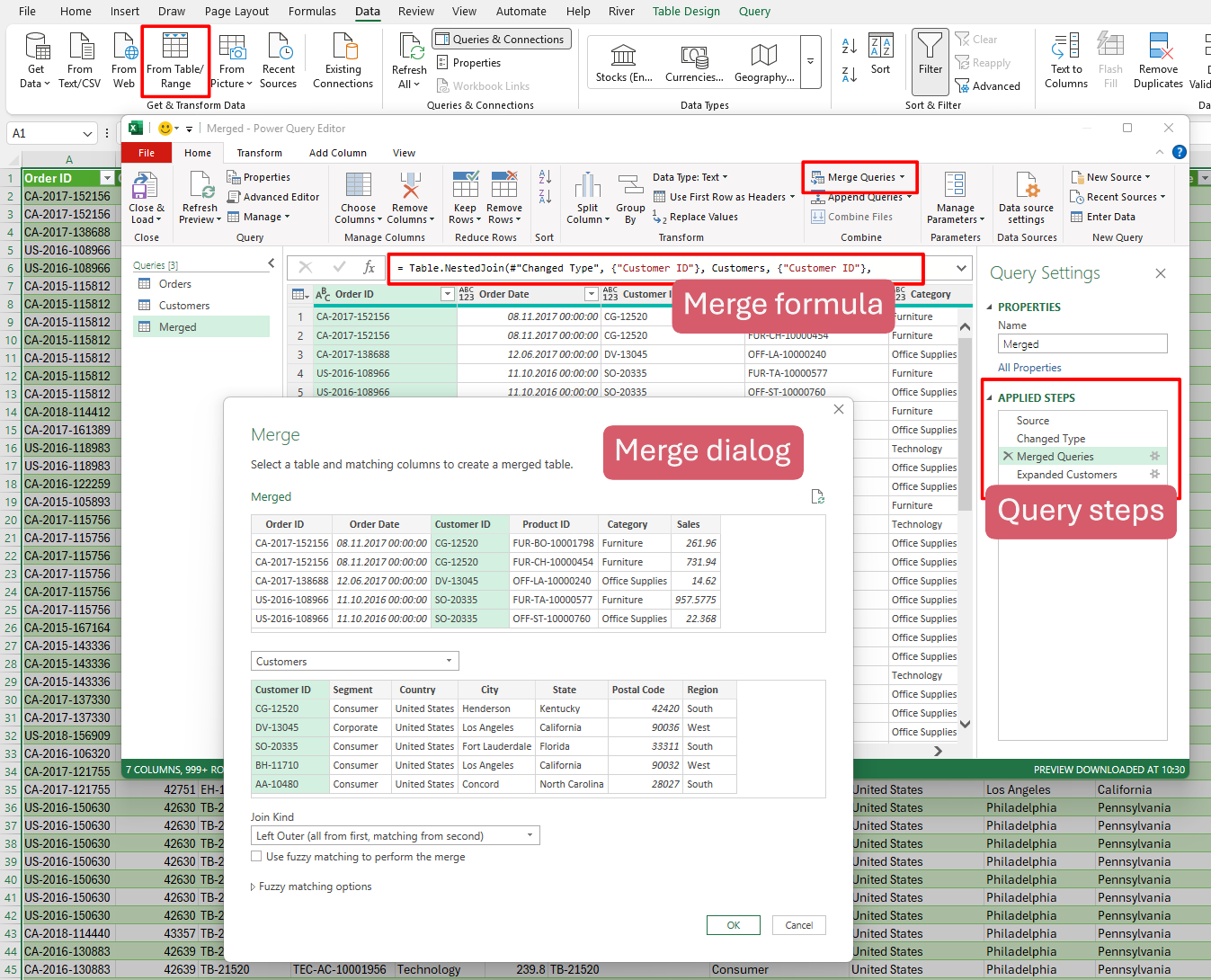
To merge two tables, you create an Excel Table with your input data, then use the Power Query Editor to create a merged query, which can contain multiple transformation steps.
You configure the merge using a formula in the Power Query M language or the built-in merge dialog. This is an example of where to click in Excel to build such a query.
River Excel Add-In
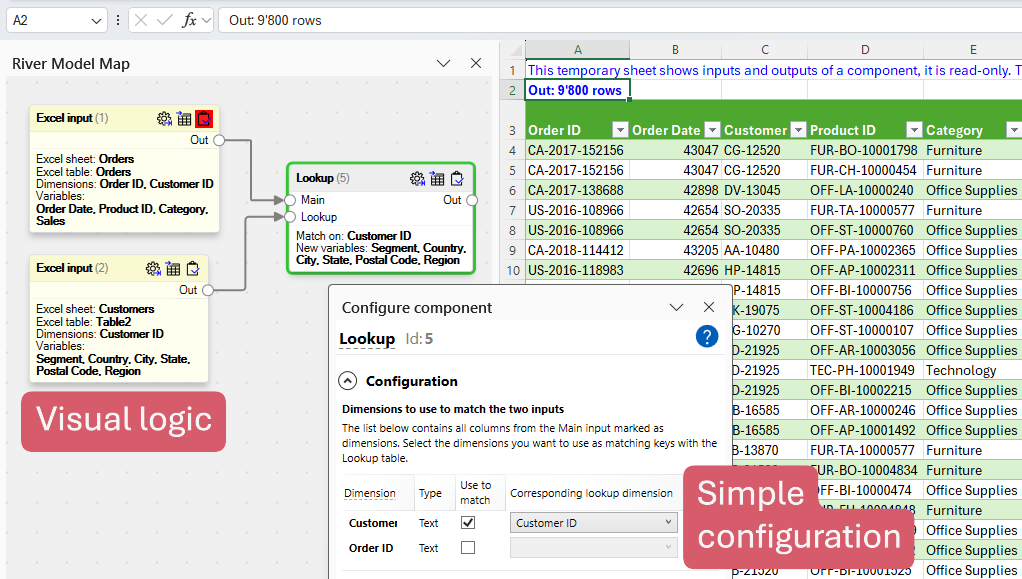
River is an Excel add-in that lets you build the model logic visually directly inside the workbook, and intuitively configure the merge, without formulas.
To merge two tables, you simply:
- Place the input data in Excel Tables (same as with PowerQuery). River automatically detects this and creates for you two Excel Input components which represent your input tables.
- You then create a Lookup component in the visual map and indicate the matching columns betweent the two tables.
The results automatically recalculate if input tables change, and since you specify the column names, you cannot make a reference mistake.
Side-by-side comparison
While these three options can be used for many different types of calculations, we compared the capabilities that are relevant when merging tables:
| Capability | Excel Formulas | Power Query | River |
|---|---|---|---|
| Ease of merging tables | 🟡Medium (create and extend formulas) | 🟡Medium (create merge queries) | 🟢Easy (simple lookup) |
| Understand the modeling steps | 🟡Medium (need to trace formulas) | 🔴Low (logic hidden in query editor) | 🟢High (visual model map) |
Learning curve | 🟡Medium (many pitfalls to learn) | 🔴Steep (PowerQuery M language) | 🟢Easy (everything is visual, help is integrated) |
Robustness to data refresh | 🔴Low (break if data size changes) | 🟢High | 🟢High |
Maintaining complex models | 🔴Difficult | 🟡Manageable | 🟢Designed for it |
Click here if you want to see a more comprehensive comparison.
Conclusion: which option fits your needs?
Whether you use Excel formulas, Power Query, or an add‑in like River depends on the complexity of your model, your comfort with coding, and your need for transparency.
All three can merge tables—each in a different way—so choosing the right method can greatly reduce the complexity of your Excel workflow.
Choose Excel formulas if:
Your model is small (max 5 sheets)
- You merge a few small tables that never change
- You prefer direct cell‑level control
Choose Power Query if:
- You manage recurring data cleaning processes
- You’re comfortable using queries for transformations
- You have time to learn the PowerQuery M language
Choose River if:
- You merge multiple tables that can change
- You want a visual overview of your entire model logic, e.g. to share with others
- You need an easy to use toolkit for more robust and complex models.
Try River for Excel
You can install the River Add-In for free:
Or watch a demo video: